When a customer's payment fails, every hour you wait costs you revenue. This playbook sets up a HubSpot workflow that automatically starts a recovery sequence the moment Stripe marks a subscription as past due and stops it the second they pay.
When to use this: When a customer's Stripe subscription moves to "past due".
The Problem
Failed payments are one of the most preventable causes of involuntary churn and many teams handle them manually. Someone checks Stripe, finds the failed payment, exports a list, and tries to send a follow-up. By then it's been 48 hours and the customer has already heard from Stripe's generic dunning email (if you have it turned on), not you.
This workflow allows you to automate the response directly inside HubSpot, customizing the messaging to come from the Account Manager and your brand, and document that it was sent in HubSpot, where your team already lives.
How It Works
🔹 Trigger: A Stripe subscription moves to Past Due.
ClearSync syncs this status change to HubSpot in real time and associates the billing contact automatically so HubSpot knows exactly who to reach out to without any manual work.
🔹 Action: HubSpot automatically enrolls the contact into a recovery email sequence.
You write the emails once. HubSpot sends them on a schedule with the customer's subscription details pulled in as personalization tokens (plan name, MRR, billing email, account owner name, etc).
✅ Result: Customers get a timely, personalized outreach from your team, not a generic Stripe notification. And the moment their payment is recovered and the subscription flips back to "Active", HubSpot automatically removes them from the sequence.
Set It Up in HubSpot
Install ClearSync and connect your Stripe account. ClearSync will sync your Stripe subscriptions as an App Object in HubSpot and automatically associate each subscription to the right Contact and Company.
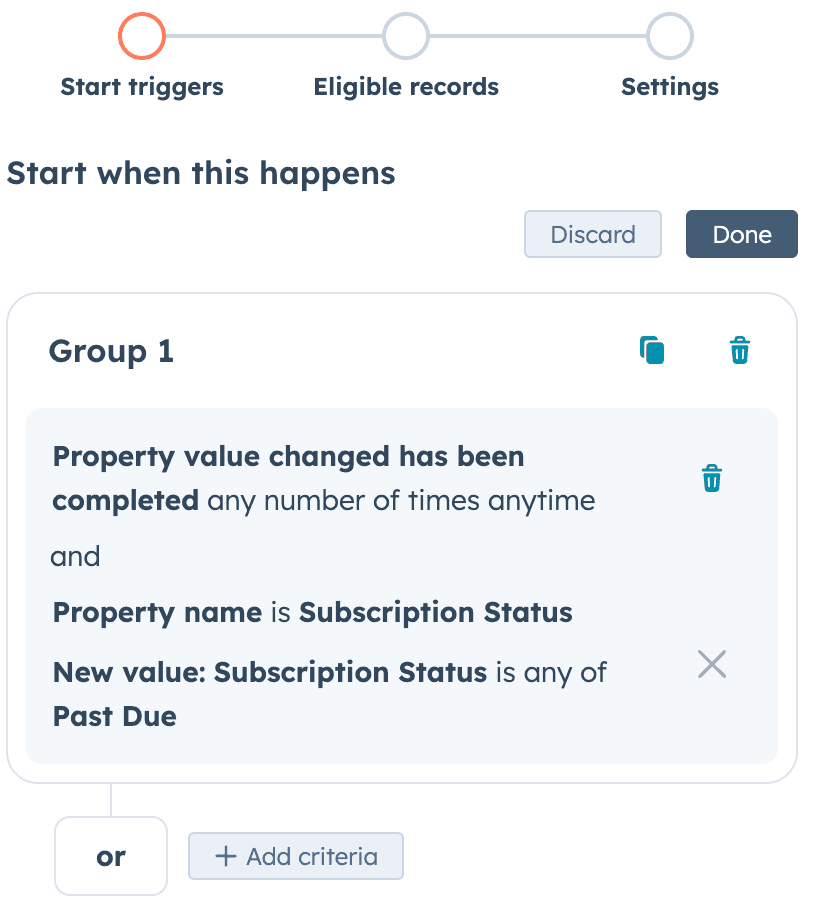
Set your triggers. In HubSpot, create a new workflow from scratch. Set the enrollment trigger to Data Values > Property Value Changed. In "Choose a property trigger", select "One property value changed." In the search, choose "ClearSync Stripe Subscription" and select "Subscription Status" is any of "Past Due".
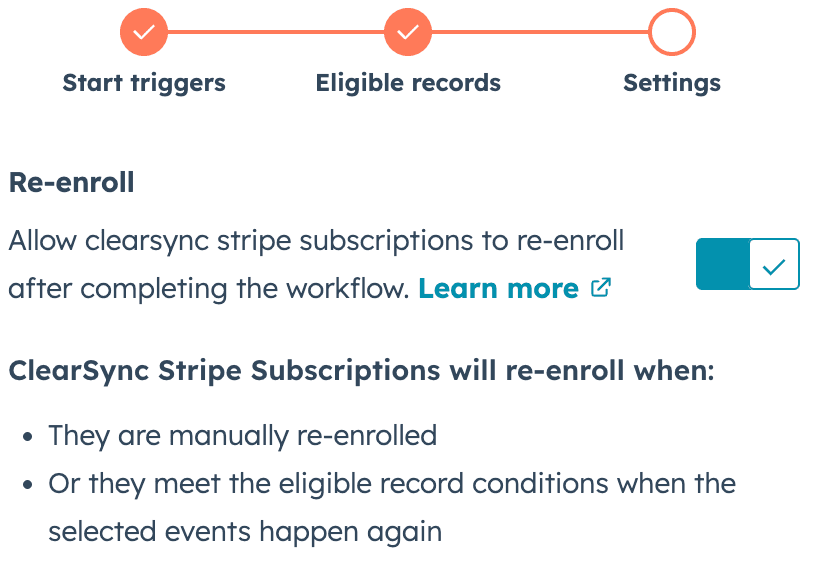
In "Settings", toggle on "Re-enroll" so that if a subscription moves to "Past Due" again, they are eligible for the workflow again.
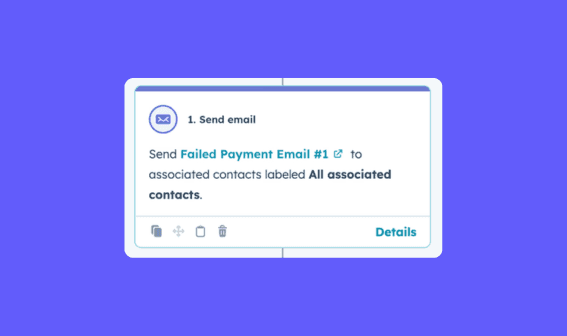
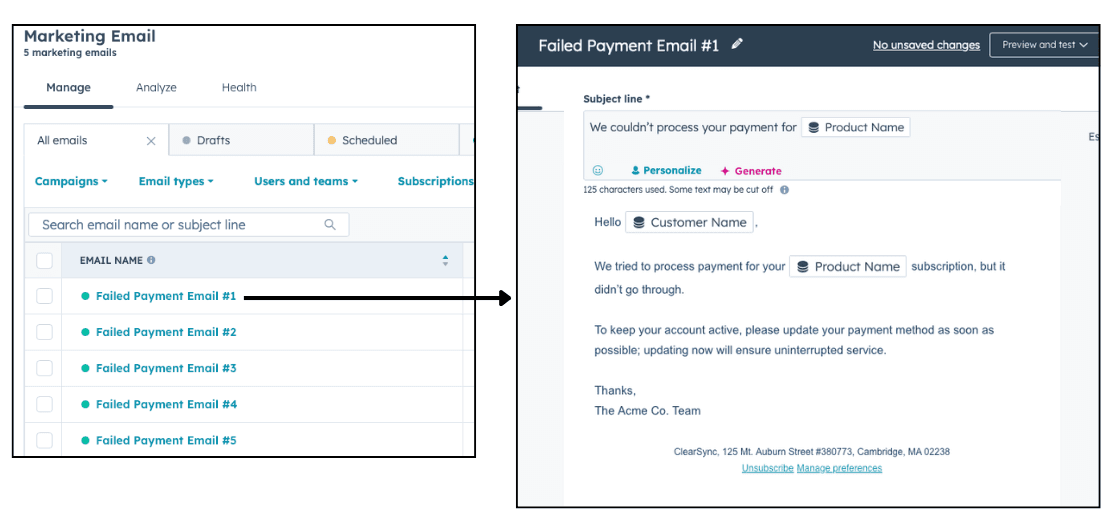
Write your recovery email sequence using HubSpot marketing emails. 2 to 4 emails works well. Reference ClearSync subscription fields like Product Name, Account Owner name, Customer Name, etc, as personalization tokens so the emails feel specific, not generic. Add your emails to the workflow with time delays between each send (sending on days 1, 3, and 7 is common).
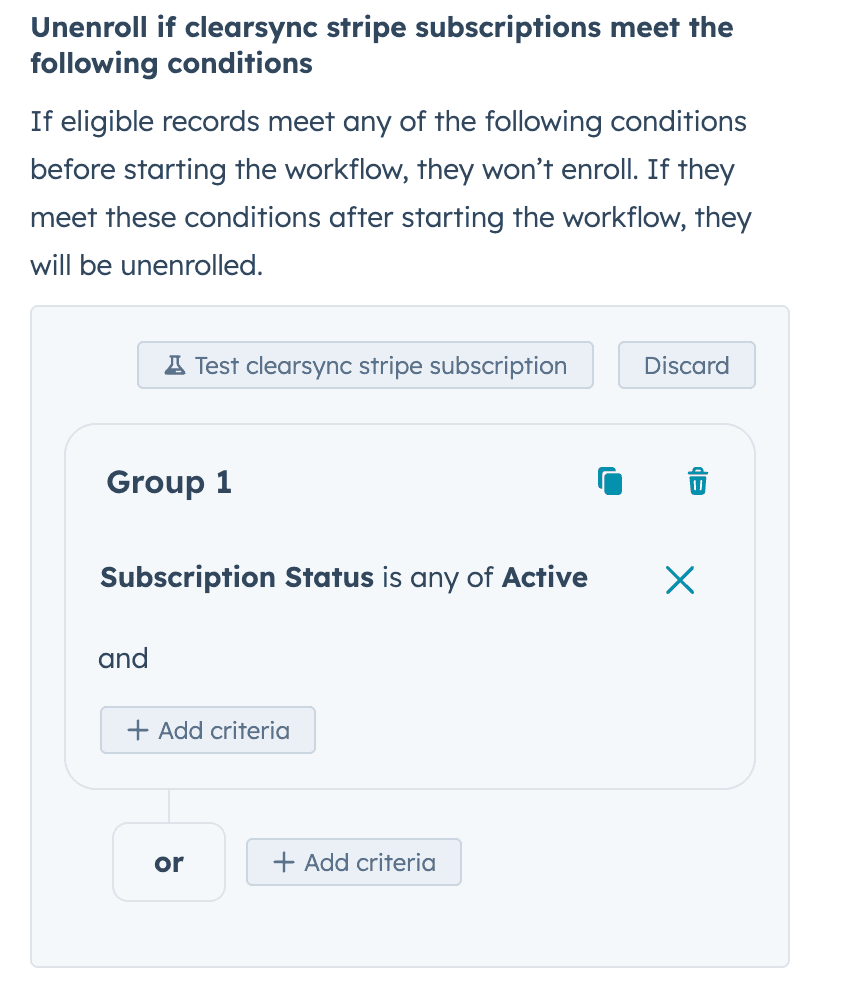
Set unenrollment settings. Once you're satisfied with your workflow, click "Review and turn on", and you will be met with a settings panel. Here you can set the workflow's unenrollment settings. Turn that setting on and add the rule to unenroll users from the email when Subscription Status is Active. This automatically pulls contacts out of the sequence the moment they pay so they won't receive payment reminder emails anymore.
Turn it on. Every future failed payment in Stripe will now trigger this workflow automatically, no manual steps required. HubSpot will automatically log the activity on the HubSpot contact record so your team can see when and how many emails were sent.