When a customer cancels in Stripe, most teams find out too late to do anything about it. This playbook changes that. The moment ClearSync detects a Planned Cancellation event, meaning the customer has scheduled their subscription to cancel at the end of the current billing period, it fires a HubSpot workflow that immediately alerts the account owner and starts a save sequence. You have a defined window to act before the subscription ends for good.
The Goal
Use ClearSync's Planned Cancellation event to trigger an immediate HubSpot alert to the contact owner and enroll the contact in a save sequence as a backup if manual outreach doesn't happen in time.
How It Works
🔹Trigger: ClearSync detects a Planned Cancellation event on a Stripe subscription (the customer has set their subscription to cancel at period end)
🔹Action: HubSpot workflow fires immediately, notifying the account owner, creating a follow-up task with the cancellation date as the deadline, and enrolling the contact in a save sequence if no manual outreach is logged
✅ Result: The right person on your team knows about the cancellation in real time, has a task with a hard deadline, and a structured save sequence runs automatically as a fallback
Set it Up in HubSpot
Install ClearSync and connect your Stripe account. ClearSync will sync your Stripe subscriptions as App Objects in HubSpot and automatically associate each subscription to the right Contact and Company.
Create a new workflow. In HubSpot, go to Workflows > Create Workflow > From Scratch. Set the enrollment trigger to Data Values > Property Value Changed > ClearSync Stripe Event > Event MRR Type is any of Planned Cancellation.
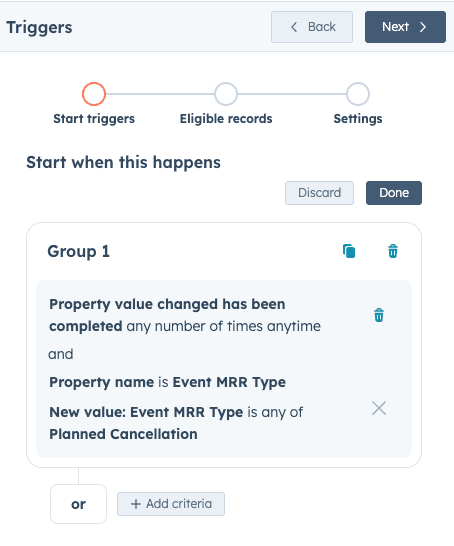
Turn on re-enrollment. This allows customers to enter the workflow again if they meet the criteria in the future.
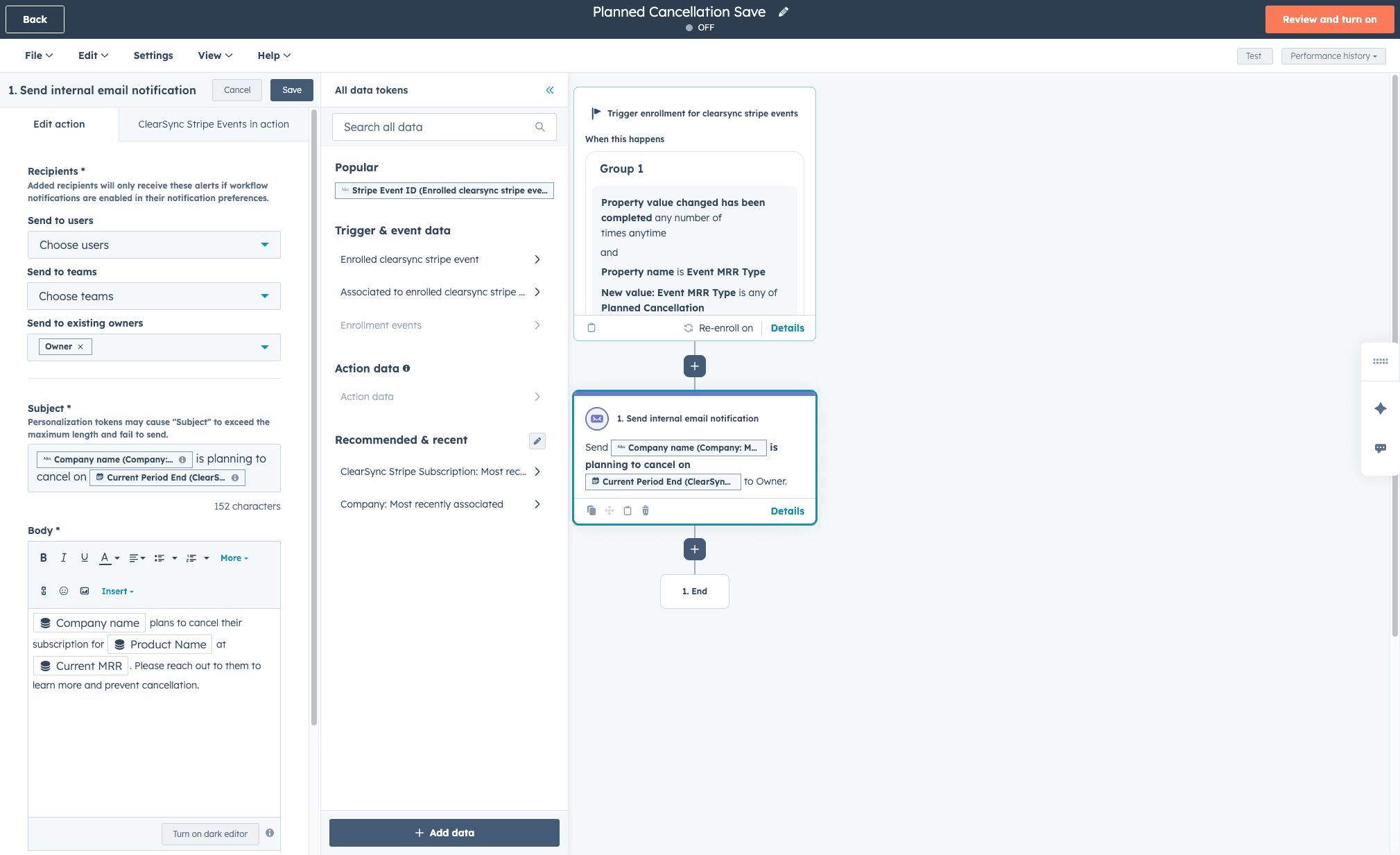
Add an owner notification. As the first action in the workflow, choose Communications > Send internal email notification and set it to notify the existing owner. Use personalization tokens to include relevant context in the notification. You may have to add additional data sources (like the most recent associated Contact record or ClearSync Stripe Subscription record) to use all the personalization tokens that make sense for your internal notifications.
Here we are using the following tokens to write this email:
Subject: {{ company.name }} is planning to cancel on {{ current_period_end }}
Body: {{ company.name }} plans to cancel their subscription for {{ product_name }} at {{ current_mrr }}. Please reach out to them to learn more and prevent cancellation.
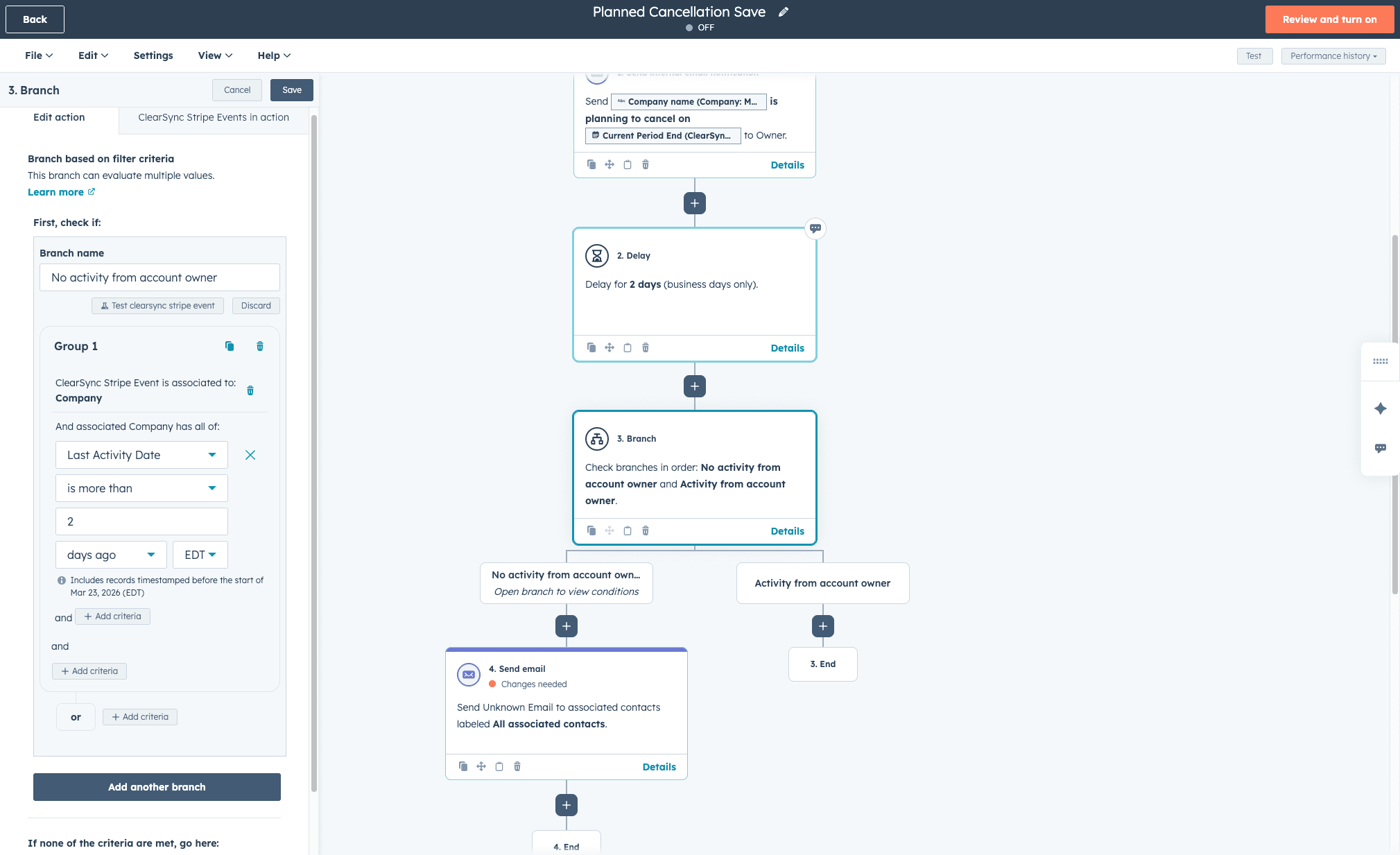
Add a time delay, then branch on owner activity. Add a 2-day delay, then use an AND/OR branch to check whether the owner has logged any activity against the company in the past 2 days (a call, email, meeting, or note). If activity exists, end the workflow because manual outreach is already underway. If no activity is logged, proceed to the save sequence in the next step. This prevents the automated sequence from firing alongside a live conversation, which creates a poor customer experience.
Enroll contacts in a save email sequence. For contacts where no owner activity has been logged after 2 days, enroll them in a save email sequence. Configure the emails to send from the contact owner's email address, not a generic marketing address. Personal-looking emails significantly outperform branded templates in save scenarios.
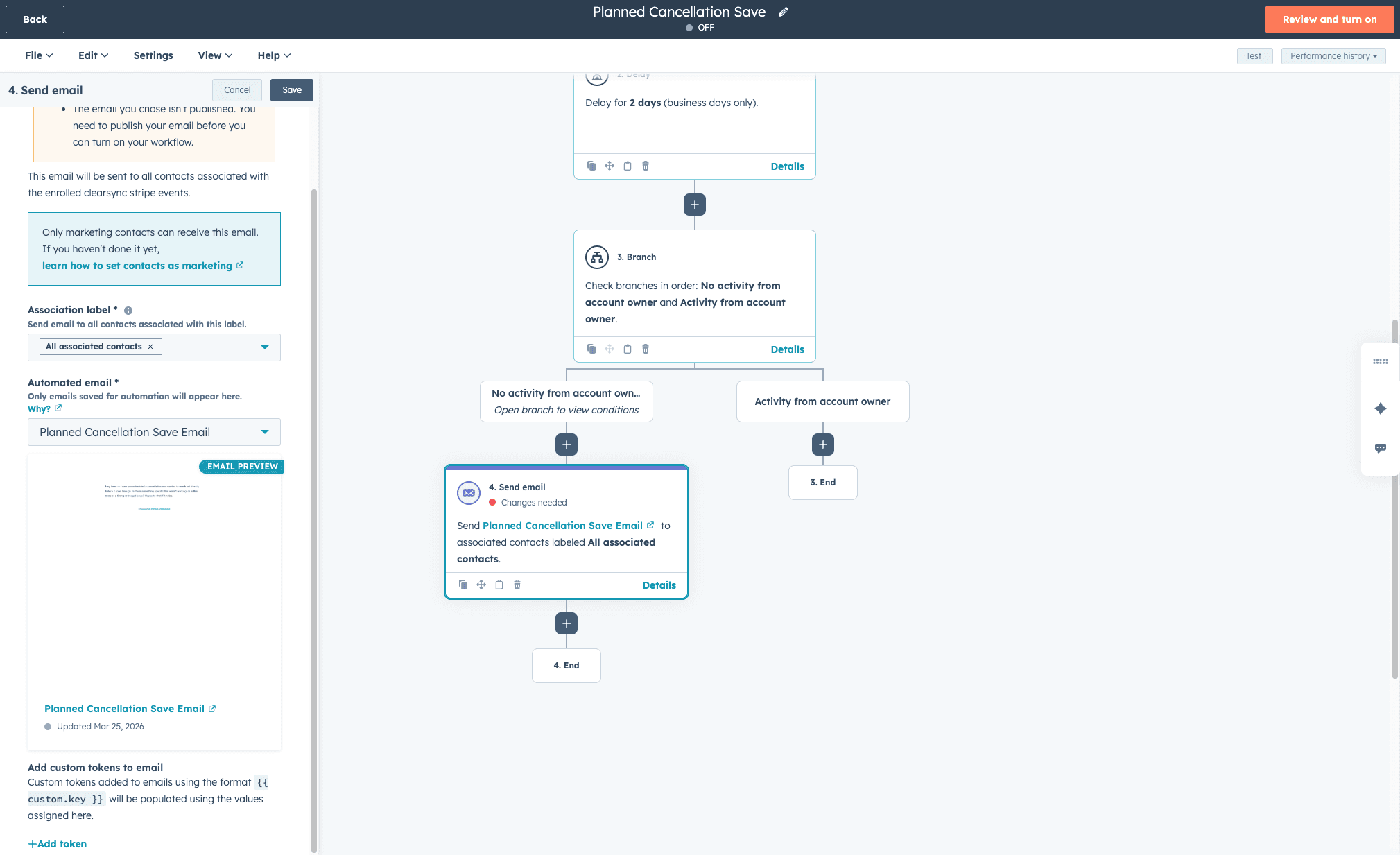
Review and turn on.
Recommended Save Email Sequence
Keep these emails short and human. Plain text, sent from a real person's email address, performs better in save flows than designed HTML templates.
Email 1
Subject: Noticed you're planning to cancel
Acknowledge the cancellation and ask a single open question.
"Hey [First Name] — I saw you scheduled a cancellation and wanted to reach out directly before it goes through. Is there something specific that wasn't working, or is this more of a timing or budget issue? Happy to chat if it helps."
Email 2 (a few days later)
Subject: A few minutes this week?
If there's been no response, offer a brief call. Keep it low-pressure and specific.
"Hey [First Name], just wanted to follow up. If there's something we can fix or adjust, I'd love 15 minutes to understand what's going on. No obligation either way, just want to make sure you have what you need to make the call."
Email 3 (a few days later or 3 days before the cancellation date, whichever comes first)
Subject: Your subscription ends on [Cancellation Date]
This email is practical. State the exact cancellation date, explain what access ends, and make it easy to reactivate or reach out.
"Your subscription is scheduled to end on [Cancellation Date]. After that, you'll lose access to [key feature or outcome relevant to their plan]. If you'd like to continue, or if you'd prefer to pause rather than cancel, just reply and I can help sort it out."
Tips for Better Results
High-value accounts may warrant a different approach. Consider adding an AND/OR branch early in the workflow based on Current MRR value. Above a certain threshold, you may want to skip the automated sequence entirely and route directly to a senior team member for a personal outreach call rather than email.
Timing the task due date matters. Don't set the task due date to the cancellation date itself, by then it's too late. Aim for 3–5 days before Current Period End so the owner has time to actually connect with the customer.
Don't let the workflow fire on already-churned customers. Add a filter to prevent enrollment if the contact's subscription status is already Canceled. The Planned Cancellation event should only apply to subscriptions that are still active and scheduled to end.